CCSU Faculty & Staff Profile Editing Instructions
Once you have finished making these changes, click the “Save” button to publish your changes. If you need help or have questions about the new system, please contact the IT Help Desk at 860.832.1720 or techsupport@ccsu.edu or submit a web request ticket.
Logging In
To log in to your profile, navigate to ccsu.edu/directorylogin
and log in with your CCSU Office 365 credentials. After logging in for the
first time, you will need to confirm your account settings. Click “Edit” and
make sure your language and time zone information is
correct. If it is, click “Save.” You will only use this link to log in again if
the edit button does not appear on your profile.
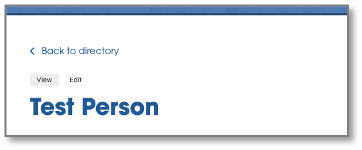
After setting up your account, navigate to your profile by searching on the main directory (https://directory.ccsu.edu) and clicking on your name or photo. This will bring you to a preview of your profile. To begin editing, click the “Edit” button above your name. This will open the Profile Editor.
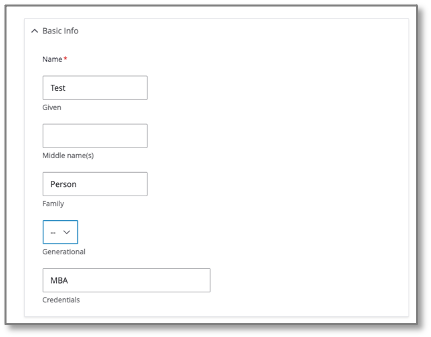
Basic Info
Input your name and credentials. Any credentials listed here will be displayed next to your name in the directory and profile. You will be able to add more detailed information about education/degrees completed in the About section.
Departments, Committees, and Programs
In this section, please list any CCSU departments, programs,
committees, etc that you are involved in, as well as
your title or role in that area (if applicable). Any non-CCSU affiliations can
be listed in the about section under “Memberships & Affiliations”
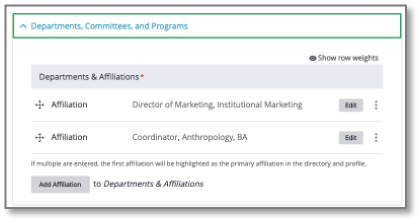
Your primary department should be the first Affiliation
listed. You can reorder the list by dragging them from the  icon.
icon.
To add new affiliations, click the “Add Affiliation” button at the bottom of
the section.
A new section will open allowing you to input the new affiliation.
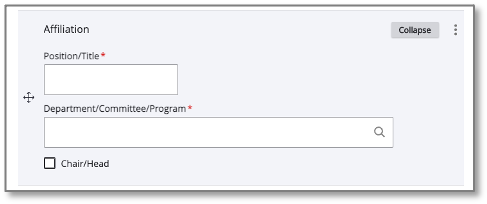
Type in your position/title in the first text field. If your CCSU department, program, or committee/organization is not listed, please submit a web request to have it added.
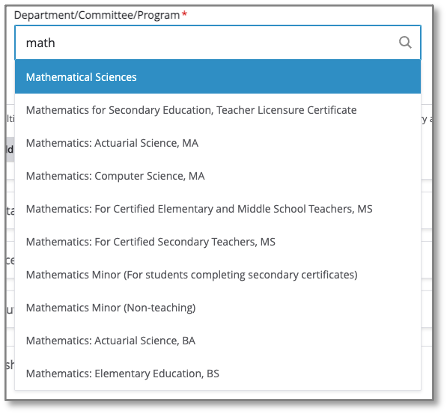
The second text field is a universal search for departments,
programs, and committees. Start typing the name of the affiliation you are
looking to be added to, and a list will appear. Select the option you are looking
for from the list.
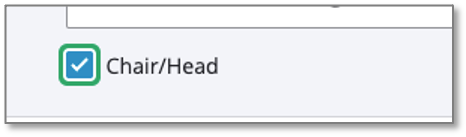
If you oversee the department or committee, or you are the coordinator for the program you are adding, check the “Chair/Head” checkbox.
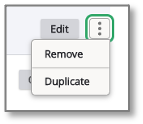
To remove an affiliation, click the options menu to the right of the listing and click ‘Remove’
Contacts
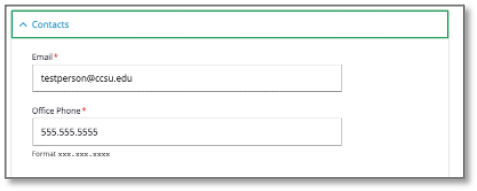
In the Contacts section, you will see your email and phone.
These must be your CCSU email and phone number. Please
keep your phone number formatted with periods, no spaces, hyphens, or parentheses
Website Links
The Website Links section allows you to link to your
personal website, professional social media accounts, etc.
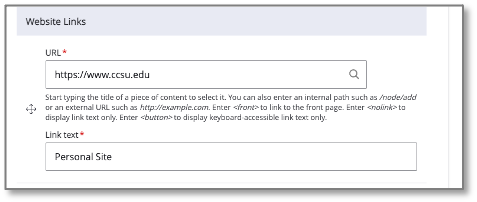
You can have up to 5 external links attached to your
profile.
Copy/paste the URL into the first (URL) field. Be sure to
include the link text that the URL will be applied to in the second field.
You can reorder these links by dragging them from the icon.
Office Info

The Office Info section includes office location and office
hours.
To change your office location, click the “Edit” button in
the “Office” box.
In the first text box, search for your office’s building and
select it from the list. Type in your room number in the second text box.
Office Hours
To add office hours to your profile, click the “Add Office
Hour” button in the Office Hour box.
A new section will appear allowing you to select the day of
the week and times you are available for that day. You can list multiple start
and end times per day.
Repeat this process for each day you are available.
If you would also like to indicate that you are available by
appointment, check the “Available by Appointment” checkbox at the bottom of the
section.

About
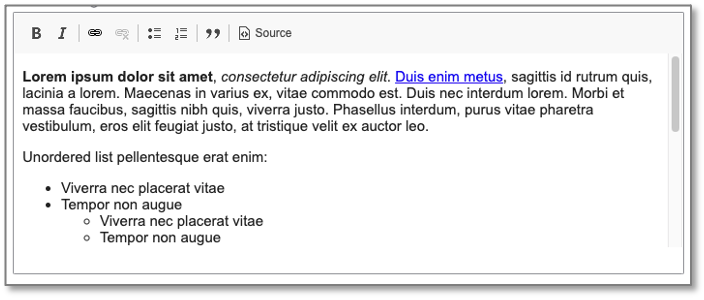
The About section has open text fields for:
·
Biography
·
Areas of Expertise
·
Publication, Research & Presentations
·
Awards & Grants
·
Memberships & Affiliations
·
And Courses Taught
None of these fields are required and will not show up on your profile if they are left blank.
These fields allow for additional formatting and hyperlinking
to external pages & resources.
Education

Additionally, in the About section, you can list your degrees
and certifications.
You can reorder these links by dragging them from the icon. Please order your degrees and
certifications in the order you acquired them, descending (newest first)
Degree Certification
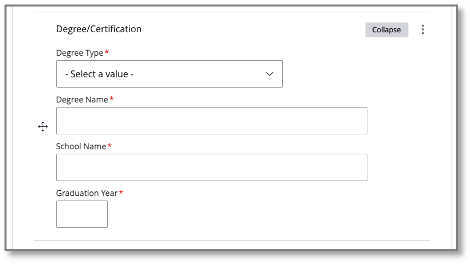
To add a new degree or certification, click “Add
Degree/Certification” and complete the text fields in the section that appears.
If your Degree Type does not appear in the dropdown, please submit a web
request ticket (www.ccsu.edu/webrequest)
Headshot
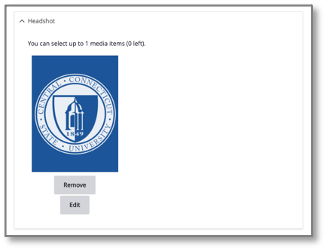
To remove your current headshot, simply click the “Remove” under
the image preview.
If you don’t have a headshot and would like to add one, click the “Add Media”
button.
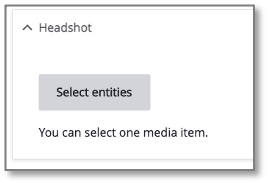
From there, you can upload an image from your computer.
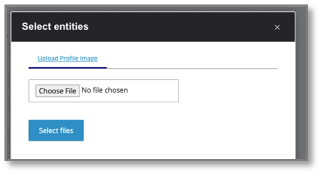
Once you have selected your photo, click the “Insert Selected”
button.
CV

If you would like to include your CV on your profile, you can by choosing whether you want to link to an external website or upload a PDF.
Publishing Updates
Once you have finished making these changes, click the
“Save” button to publish your changes.
If you need help or have questions about the new system,
please contact the IT Help Desk at 860.832.1720 or techsupport@ccsu.edu or
submit a web request
ticket.